Creating a New Game
Creating the Rojo Project
Rojo has a built-in command to initialize a new game project.
- VS Code
- CLI
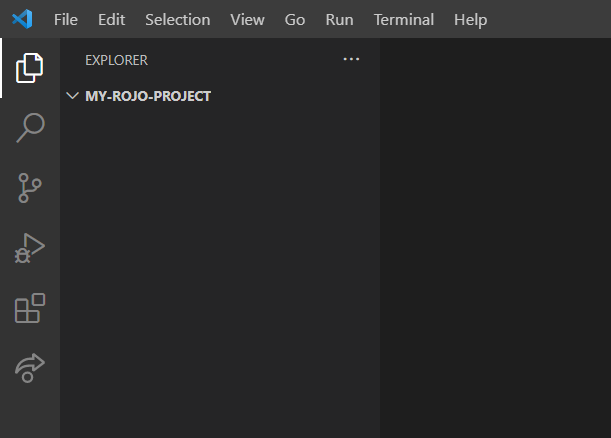
Open a new empty folder in VS Code. Your editor should look like this:
Open your VS Code Command Palette (ctrl+shift+P on Windows, cmd+shift+P on macOS) and type Rojo: Open Menu. Run the command that pops up:

Select Create one now from menu to initialize Rojo project

Once it succeeds, you should see a bunch of new files:
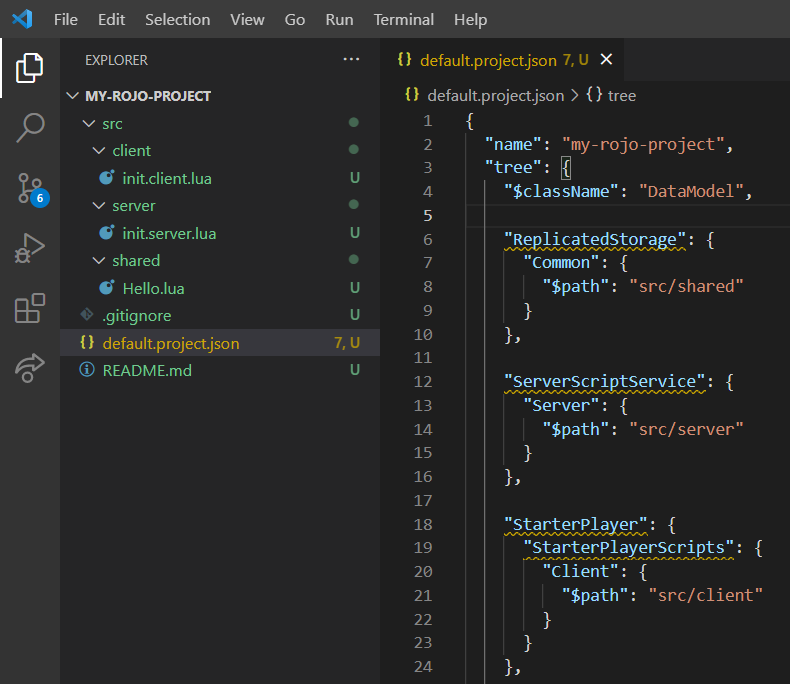
These are all the files you need to get started with Rojo.
First, open up a terminal window, like cmd.exe on Windows or Terminal.app on macOS. Navigate to where you'd like to store your new project and run
rojo init my-new-game
Rojo will create a folder named my-new-game if it doesn't already exist and create everything you need to get started.
Building Your Place
Now that we have a project, one thing we can do is build a Roblox place file for our project. This is a great way to get started with a project quickly with no fuss.
- VS Code
- CLI
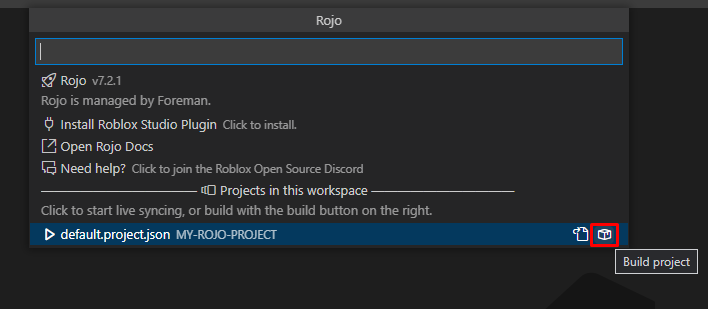
Open your VS Code Command Palette (ctrl+shift+P on Windows, cmd+shift+P on macOS) and type Rojo: Open Menu. Run the command that pops up:
Click the Build project button.
All we have to do is run rojo build from inside the project's folder:
rojo build -o build.rbxlx
To generate a binary place file instead, use build.rbxl.
Rojo will create a file named build.rbxlx that contains your new game!
If you open build.rbxlx in Roblox Studio now, you should see a baseplate, as well as code in services like ReplicatedStorage.
Live-Syncing into Studio
Building a place file is great for starting to work on a game, but for active iteration, you'll want something faster.
In Roblox Studio, make sure the Rojo plugin is installed. If you need it, check out the installation guide to learn how to install it.
To expose your project to the plugin, you'll need to start the live sync server.
- VS Code
- CLI
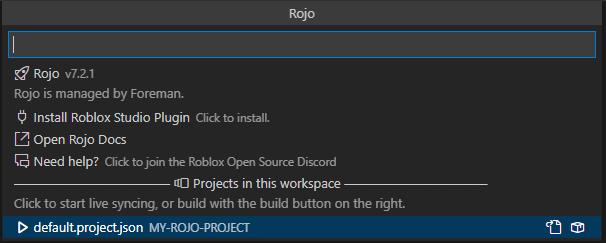
Open your VS Code Command Palette (ctrl+shift+P on Windows, cmd+shift+P on macOS) and type Rojo: Open Menu. Run the command that pops up:
Click the project button from Projects in this workspace section
You should see a small popup in the bottom right corner of your screen with a few details.
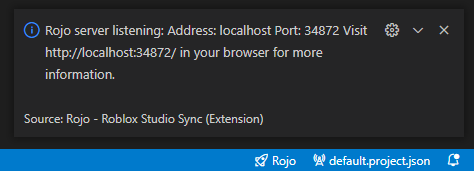
rojo serve
You should see output like this in your terminal:
$ rojo serve
Rojo server listening:
  Address: localhost
  Port:    34872

Visit http://localhost:34872/ in your browser for more information
Switch into Roblox Studio and press the Rojo plugin toolbar button. A panel should open:
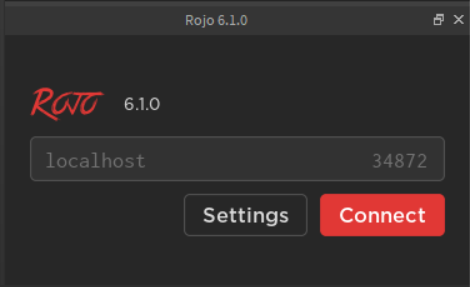
Press Connect.
If all went well, you should now be able to change files in your project directory and watch them sync into Roblox Studio in real time!
You can also visit the URL printed by Rojo to access extra information about the running session.
Uploading Your Place
Aimed at teams that want serious levels of automation, Rojo can upload places to Roblox.com automatically.
You'll need an existing game on Roblox.com as well as the .ROBLOSECURITY cookie of an account that has write access to that game.
It's recommended that you set up a Roblox account dedicated to deploying your game instead of your personal account in case your security cookie is compromised.
Generating and publishing your game is as simple as:
- VS Code
- CLI
Uploading places is not yet supported in the Rojo VS Code Extension. You can publish your game using Roblox Studio or use the Rojo CLI instead.
rojo upload --asset_id [PLACE ID] --cookie "[SECURITY COOKIE]"
If you are on Windows and have Roblox Studio installed, --cookie is optional and will be pulled from your Roblox Studio session if not specified.
An example project is available on GitHub that deploys to Roblox.com via GitHub Actions automatically: Desert Bus 2077